




A STEP-BY-STEP GUIDE ON HOW TO DOWNLOAD THE BLOCKCERTS WALLET APP ON A MOBILE PHONE OR TABLET
The Blockcerts Wallet App can only be downloaded and used on a mobile phone or tablet. Downloading the Blockcerts Wallet App is now OPTIONAL, but it is recommended that you download the app so that you will be able to save all your Digital Certificates such as the Institute for the Public Services (IPS) Certificates, School Leaving Certificates, ICT C3 Certificates, and other Certificates issued via Blockcerts in one place on your mobile phone or tablet.
STEP 1:
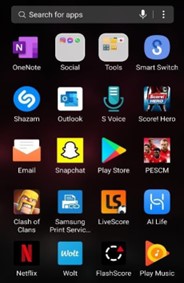
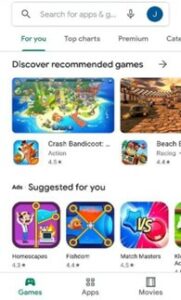
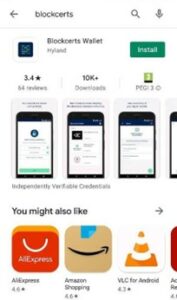
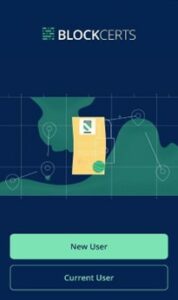
The below screenshot shows the homepage of the mobile phone. Select the Play Store icon to download the Blockcerts Wallet Application.
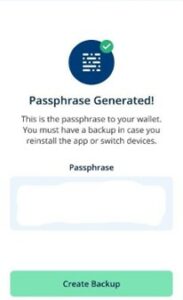
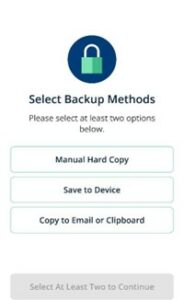
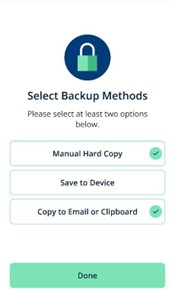
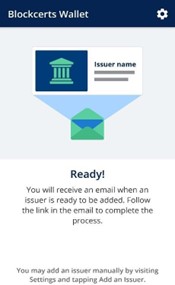
Frequently Asked Questions (FAQs)
Please find Procedure to Import SSC&P Certificates and/or Transcripts, below:
Importing Certificates
To re-import the certificate credentials within your Blockcert Wallet app, follow the instructions below:
- Make sure you have the Blockcerts Wallet app installed on your mobile device;
- From the same mobile device where the Blockcerts Wallet app is installed, locate the email with the following subject “Your Digital Credential is ready”;
- Within such an email, there is a green button named “Import my Credential”;
- Just click on the mentioned button and the credential will be imported within the Blockcert Wallet app.
Importing Transcripts
To re-import the transcript credentials within your Blockcert Wallet app, follow the instructions below:
- Make sure you have the Blockcerts Wallet app installed on your mobile device;
- From the same mobile device where the Blockcerts Wallet app is installed, locate the email with the following subject “Your Digital Transcript is ready”;
- Download the attached file (.json) to the mobile device;
- Open the Blockcerts Wallet App on the mobile device;
- Tap the Settings cogwheel (or gear) icon in the top right corner;
- Select “Add Credential”;
- Select “Import from File”;
- Then choose the attached file from the mobile device.
For further assistance send an email to [email protected]